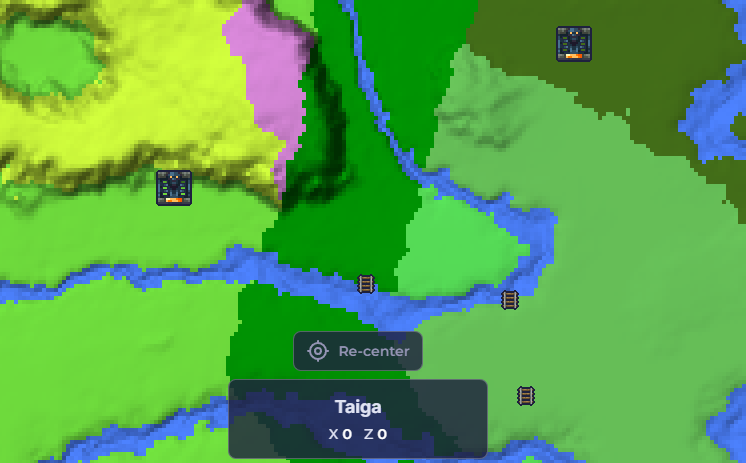
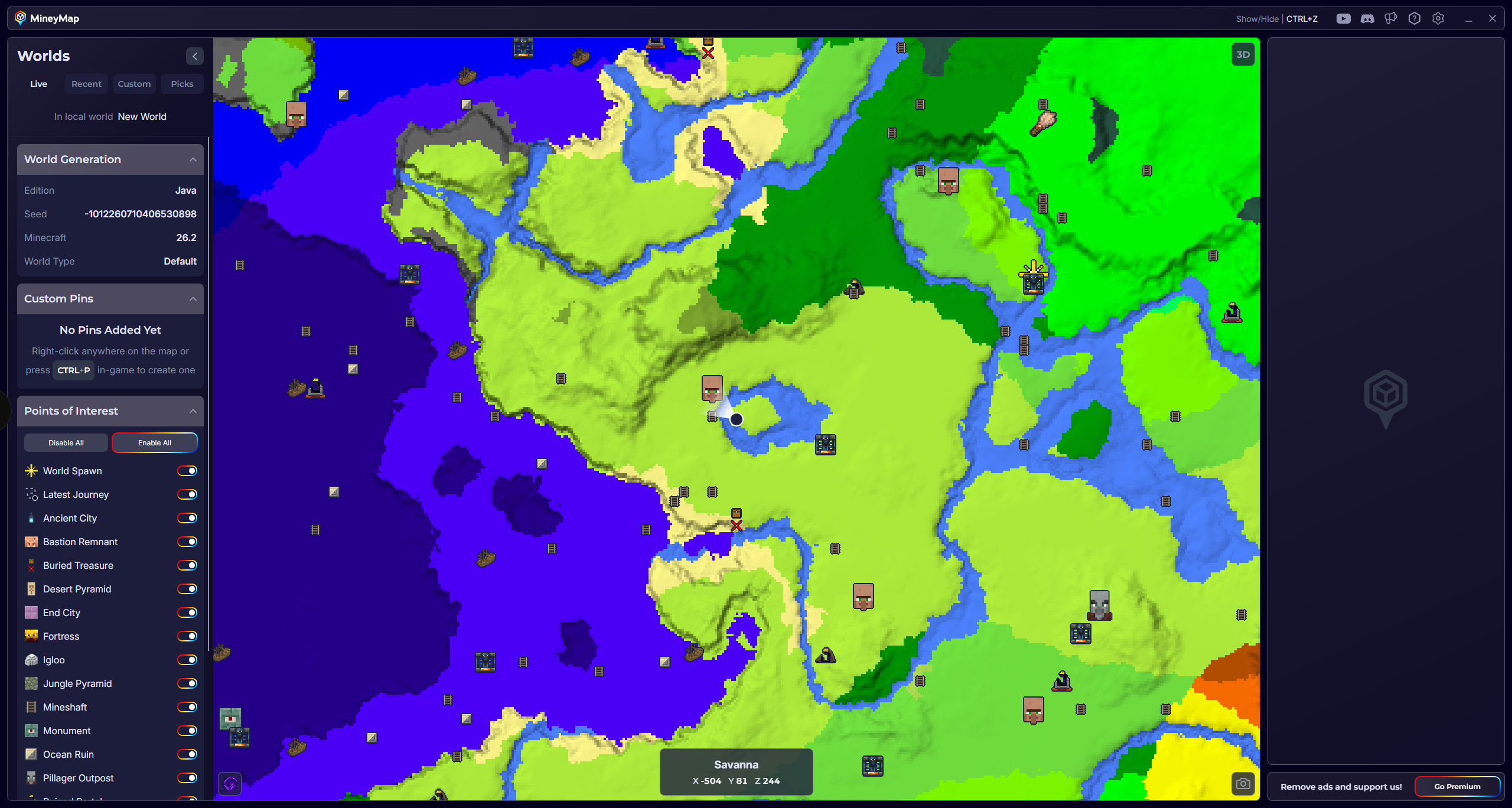
Minimap, Main Map, and Second Screens
Use the in-game minimap for quick orientation or open the large map with the default hotkey CTRL+Z for a wider view. When MineyMap detects a second monitor, it automatically opens a dedicated second-screen window with a large map, so your main screen can stay focused on Minecraft.
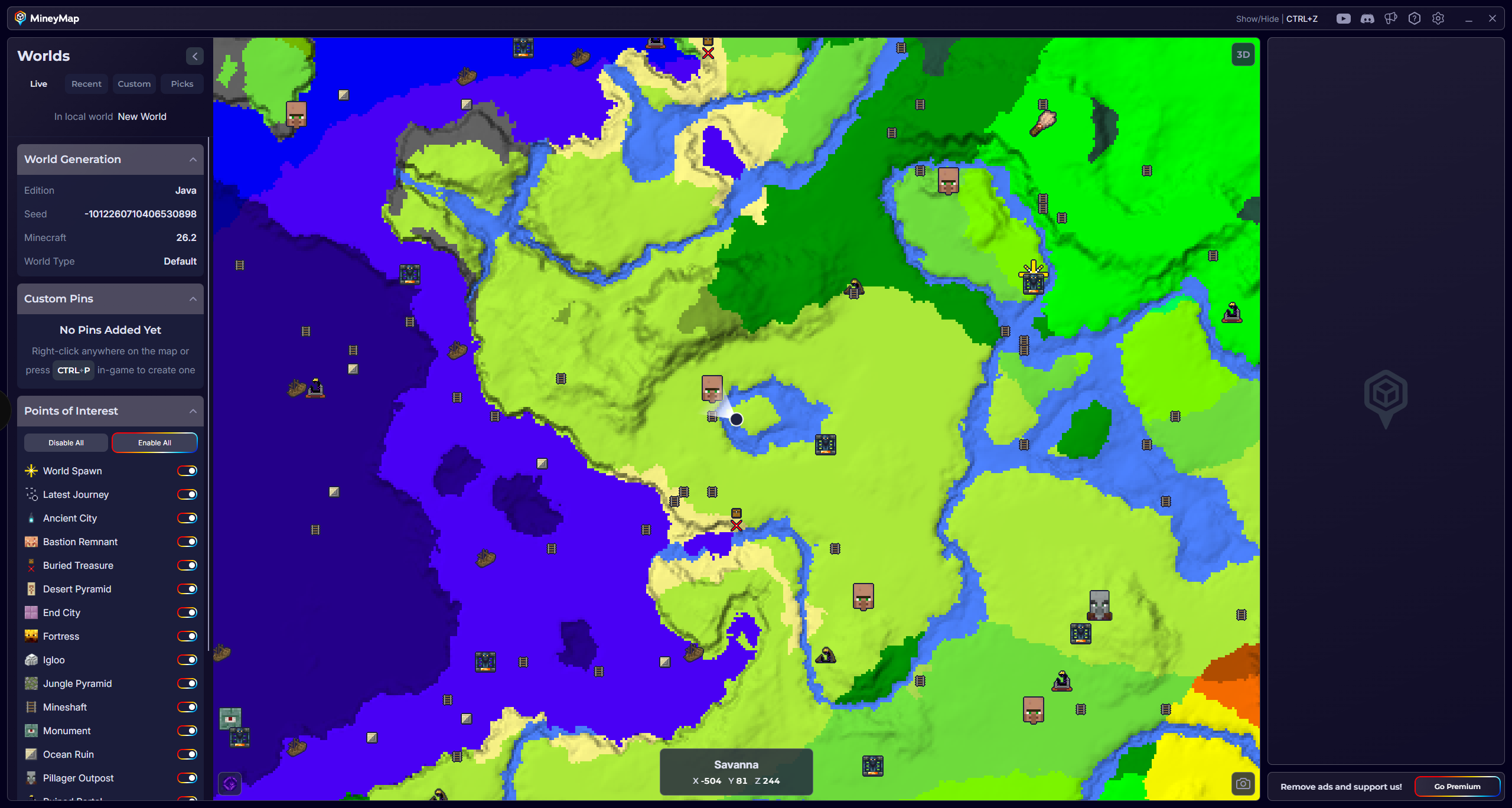
Zoom Controls for Each Map View
Scroll the mouse wheel to zoom the main map. Use CTRL+= and CTRL+- to zoom the minimap. On a second screen, use ALT+= and ALT+- to zoom in and out.
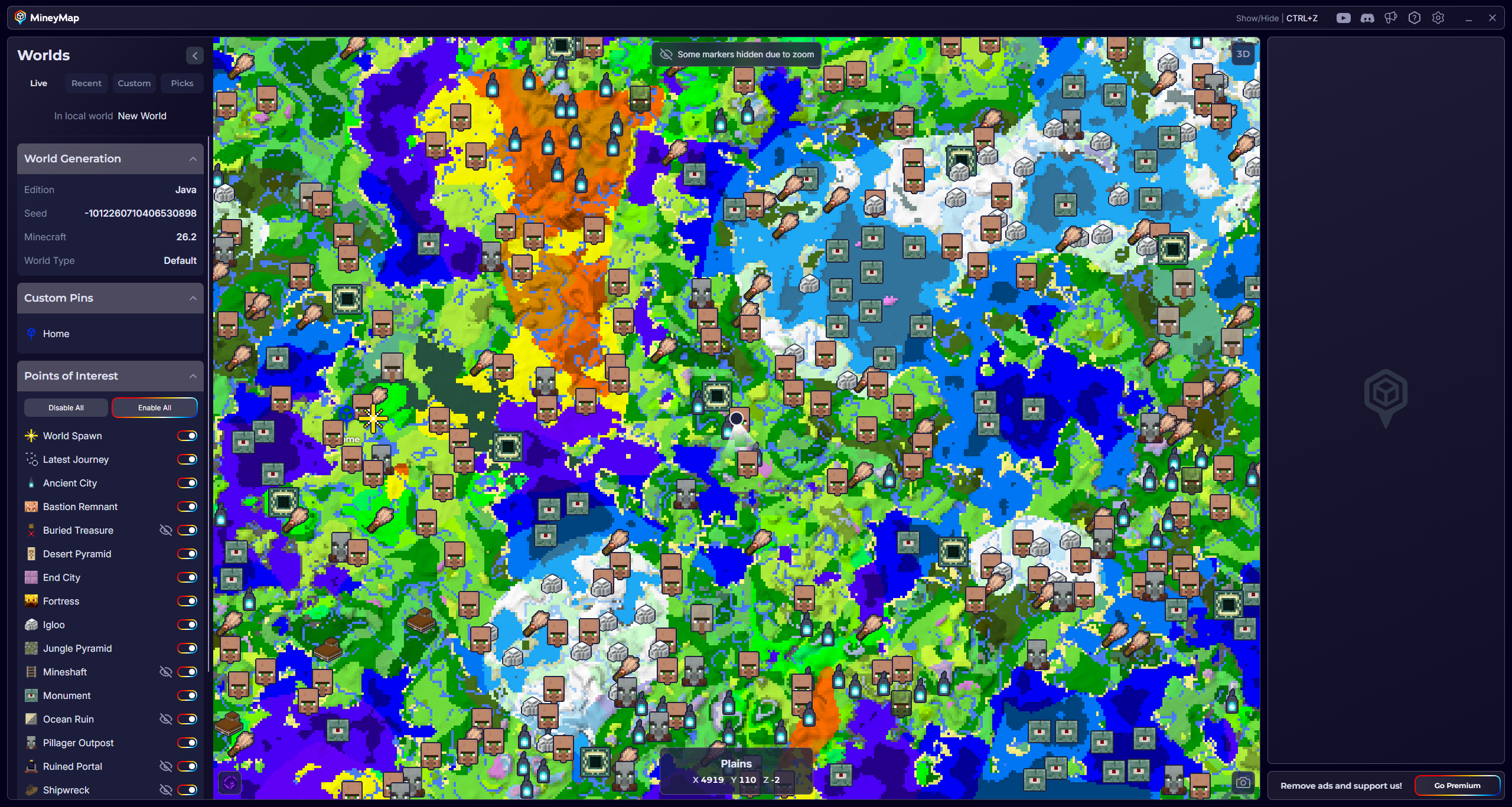
Follow Your Position or Roam the Map
The main map centers on the player's current position and follows movement automatically. If you move the map away from the player, it enters "roaming mode" and stops following so you can explore another area. Click Re-center to return to the player and resume automatic following. The minimap, on the other hand, always follows the player and does not have a roaming mode; you can only change its zoom using the minimap hotkeys.