Set up MineyMap and Enter a World
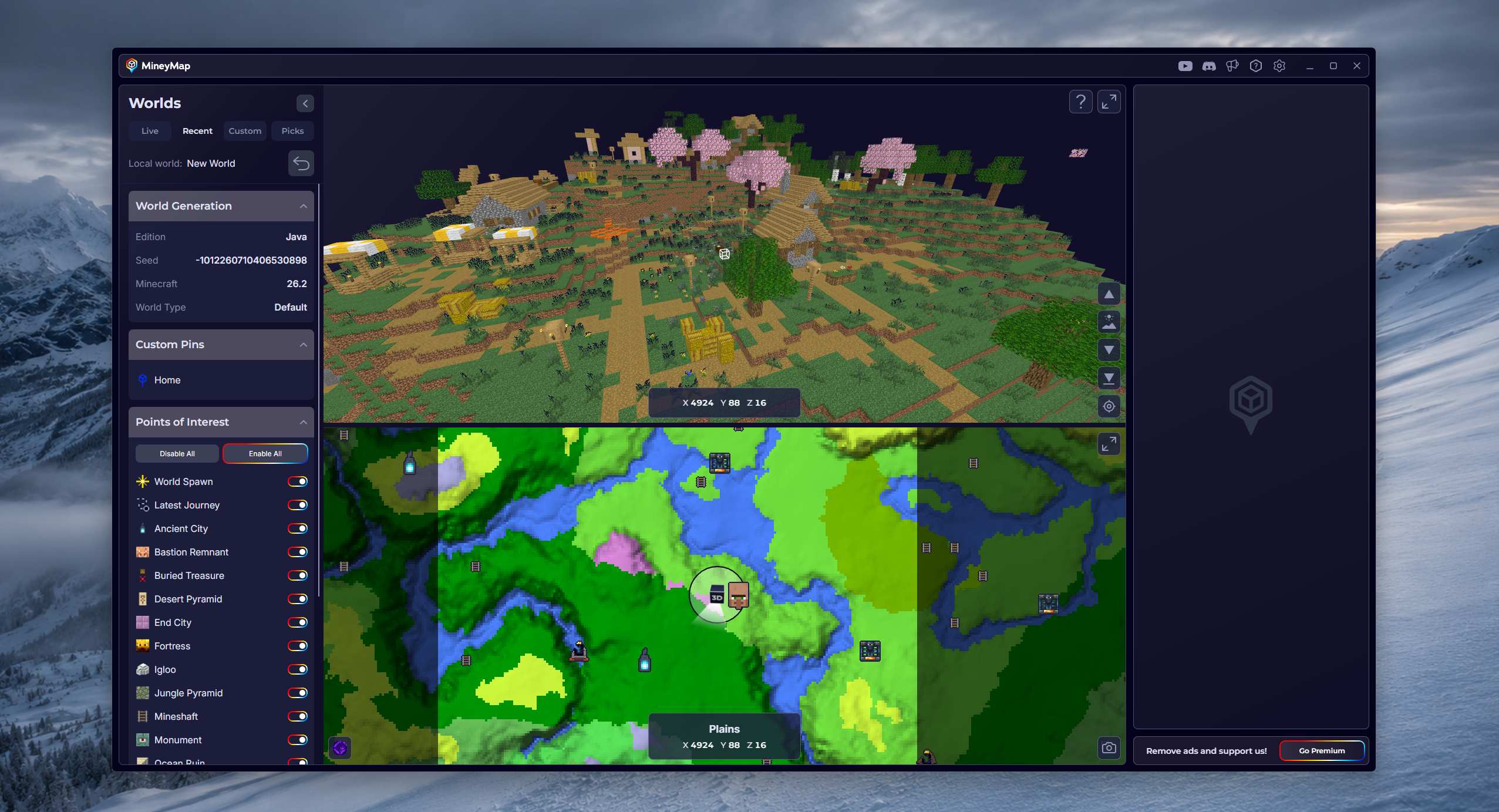
Getting started only takes a few steps. Once installed, MineyMap automatically detects and displays the world you are playing.
- Download and run the MineyMap installer. Overwolf, the platform that powers MineyMap, is included if it is not already installed
- Allow MineyMap's in-game overlay when prompted. If Minecraft was open during installation, restart the game
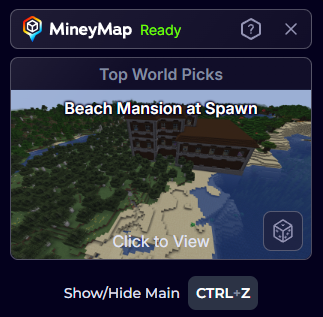
- Check the in-game status window to confirm MineyMap is ready or see help with a setup problem
Supported Minecraft Versions
MineyMap works automatically when you enter a supported world. There is no edition setup to choose.
- Java Edition works with versions 1.18 and newer
- Bedrock Edition works with the latest version through the official Minecraft Launcher
Give MineyMap a Moment to Detect Your World
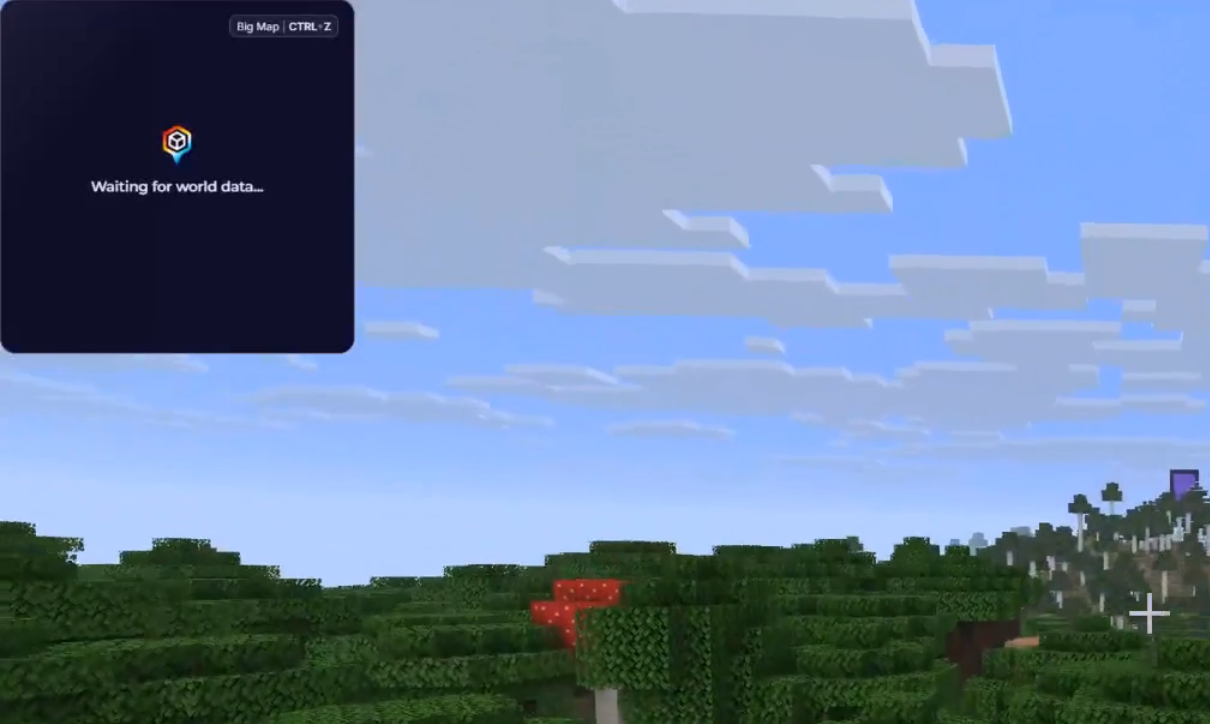
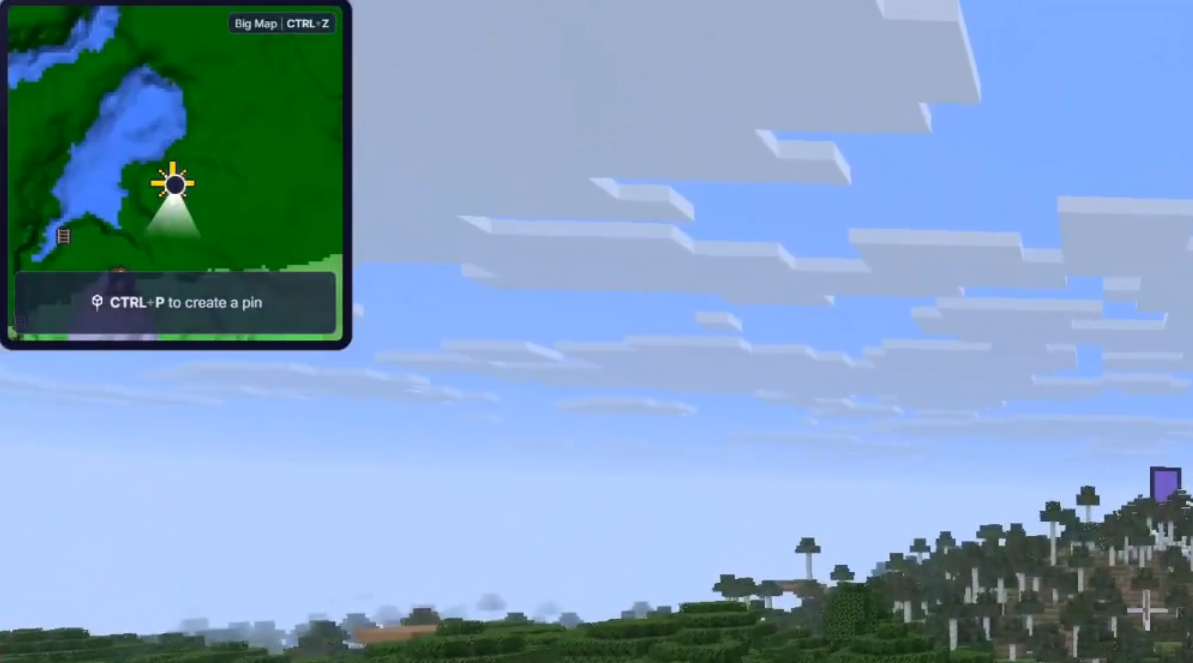
When you enter a world, the minimap displays Waiting for world data while MineyMap detects it. This generally takes a few seconds, but in some cases it can take up to 30 seconds depending on your hardware and Minecraft edition. If the map still does not appear after that, check the in-game status window or visit our Discord server for help.
Get the World Seed from a Multiplayer Server
A Minecraft seed is the number or text value used to generate a world's terrain, biomes, and structures. MineyMap needs the server's seed to recreate the correct world layout.
How to Get the Seed
- Try typing /seed in Minecraft chat. This works when the server allows the command and your account has permission to use it
- If /seed is unavailable, ask the server owner or an operator for the seed
- Some servers keep their seed private. If the owner will not share it and you do not have permission to use /seed, there may be no way to obtain it
Open MineyMap When the Seed Prompt Appears
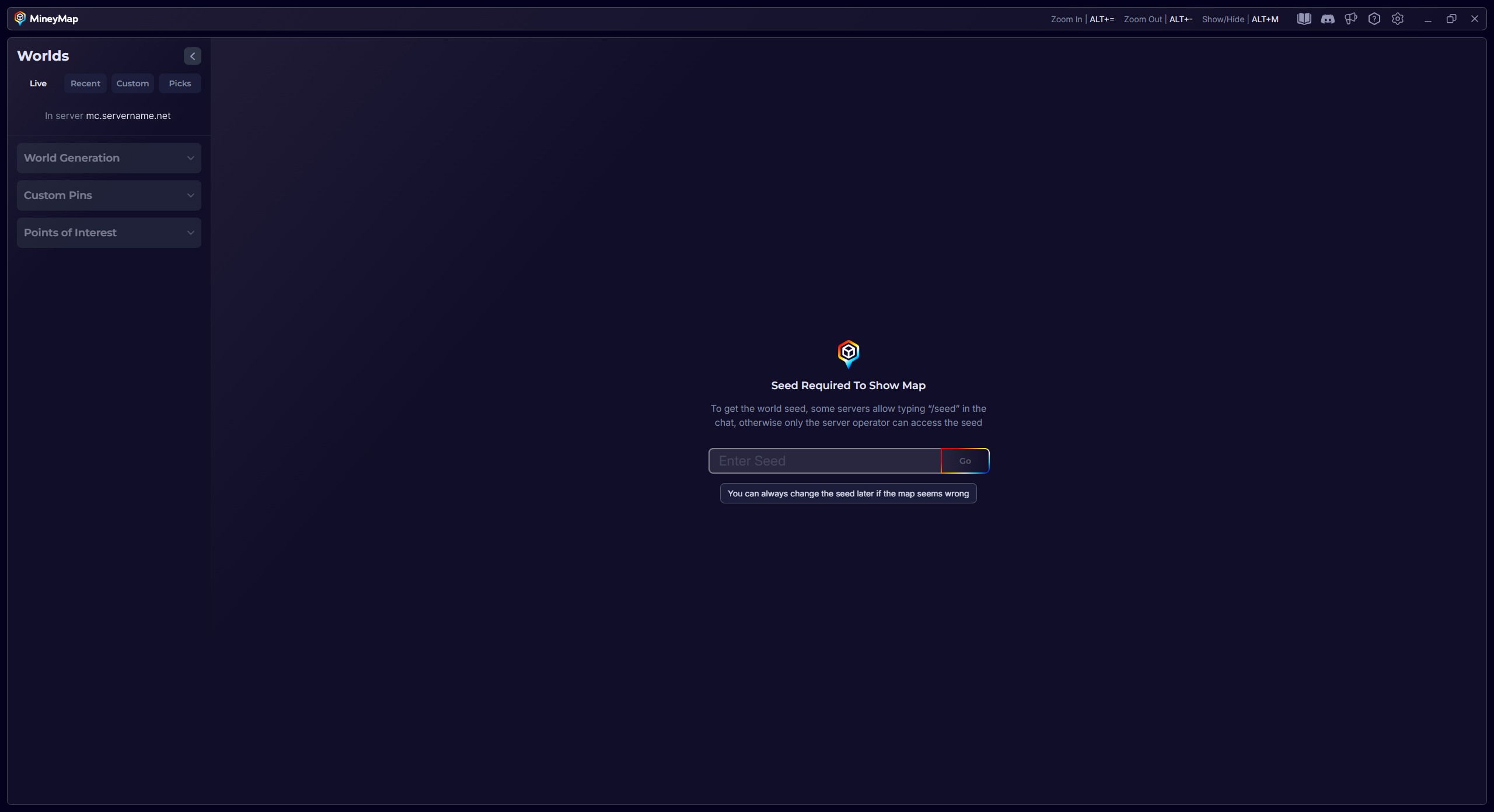
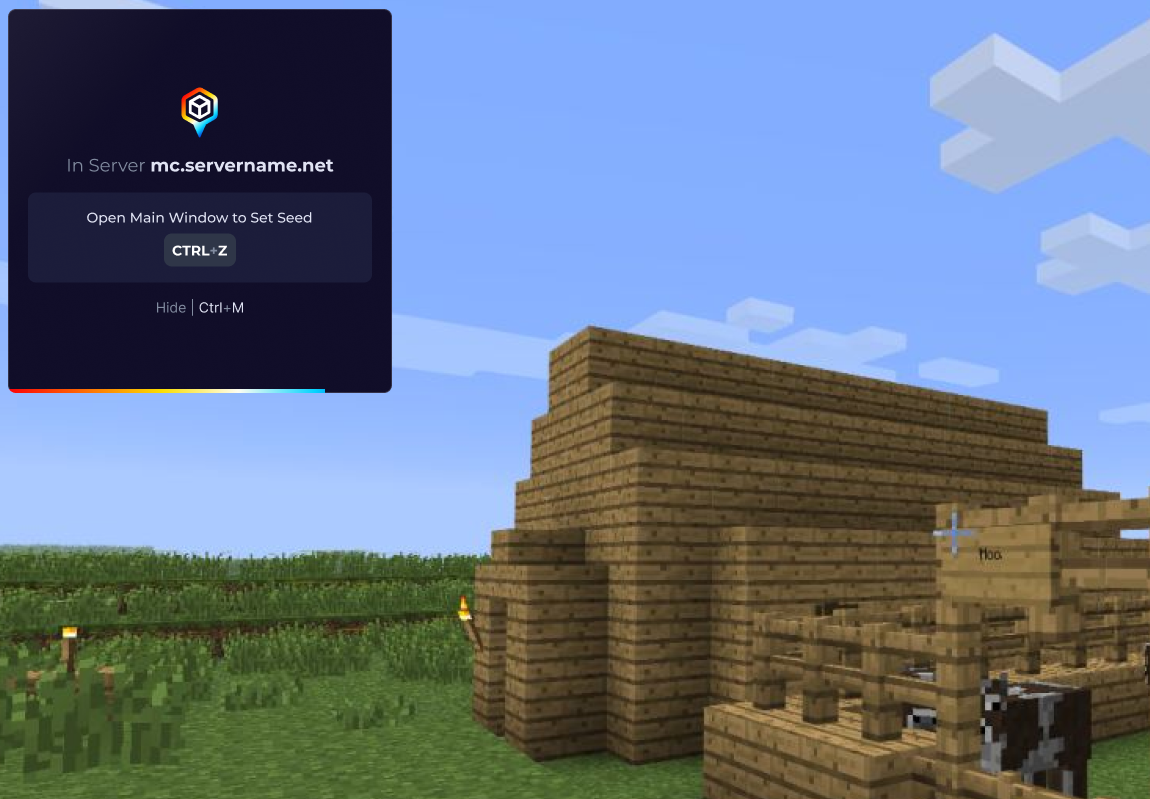
When MineyMap detects a multiplayer server without a saved seed, the minimap asks you to open the main window. Press CTRL+Z to continue to the seed-entry screen.
Enter the Multiplayer Seed in MineyMap
Java multiplayer worlds are supported. Open MineyMap's main window, enter the server's world seed on the Seed Required screen, and select Go. MineyMap will use that seed with the matching Minecraft version to generate the server's map. Bedrock multiplayer is not supported yet, but support is planned.