
MineyMap Guides

Settings and Technical Help

Adjust your preferences and hotkeys, troubleshoot issues, and contact support.

Settings and Technical Help in MineyMap
Focused guidanceJava & BedrockPractical examples

Adjust Settings and Preferences

Open Settings with the cogwheel button Settings cogwheel icon in MineyMap's header, then review the available options or change your hotkeys. Preferences are shared, while Java and Bedrock have separate hotkey lists; use the toggle at the top-right of the Settings window to switch between them. You can find your installed MineyMap version at the bottom of the Settings window.
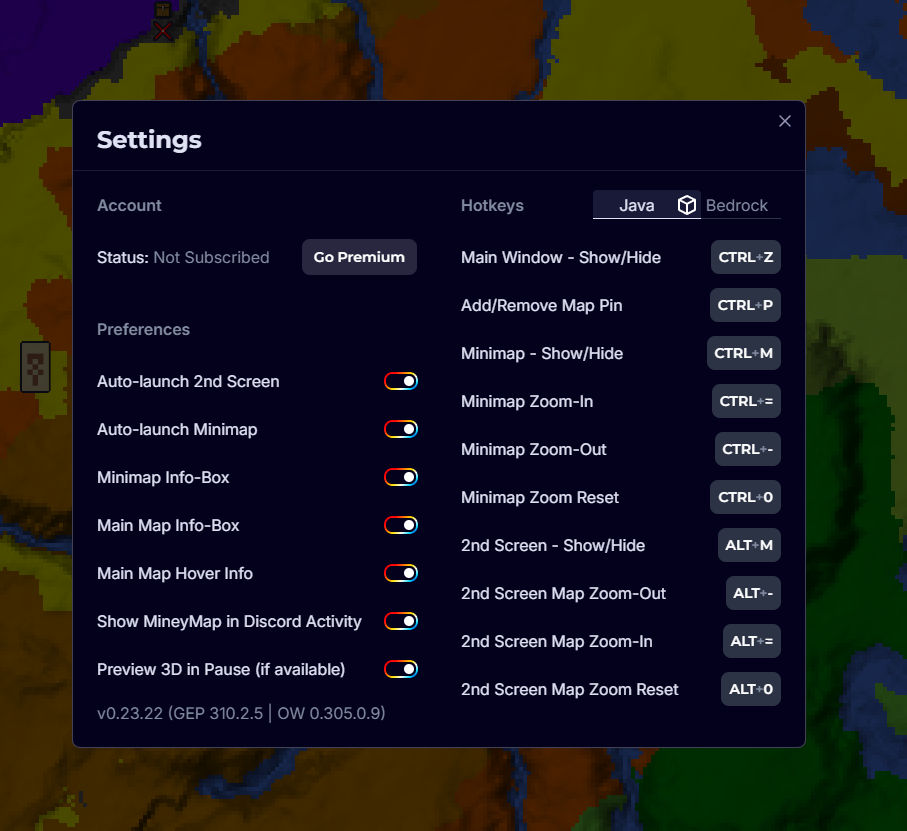
MineyMap settings showing shared preferences, Java hotkeys, the Java and Bedrock hotkey toggle, and the installed version
Review your preferences and hotkeys, and find your MineyMap version at the bottom of the Settings window

Need a Hand?

Talk to Us on Discord

If MineyMap still has not detected your world after 30 seconds, or anything else does not behave as expected, come tell us what happened. We will do our best to help.

Join the MineyMap Discord

Useful Answers

Questions, Answered

How do I open MineyMap Settings?

Click the cogwheel button in MineyMap's header to open Settings.

Are Java and Bedrock hotkeys separate?

Yes. Preferences are shared, but Java and Bedrock have separate hotkey lists. Use the toggle at the top-right of the Settings window to switch between them.

Can I change MineyMap's hotkeys?

Yes. Open the settings page for the edition you use and change the available hotkeys there.

Where can I get help with MineyMap?

Join the MineyMap Discord through the link on this page or in the website header or footer. Tell us what happened and we will do our best to help.

Map the World You Play

Stay Oriented in Your Next Minecraft World

Keep terrain, live coordinates, useful locations, and the places you save together on one clear map.

Download MineyMapFree Contains ads Subscription available